Your AI Assistant Now Speaks EasySwing
Your AI Assistant Can Now Read and Write Your EasySwing Data
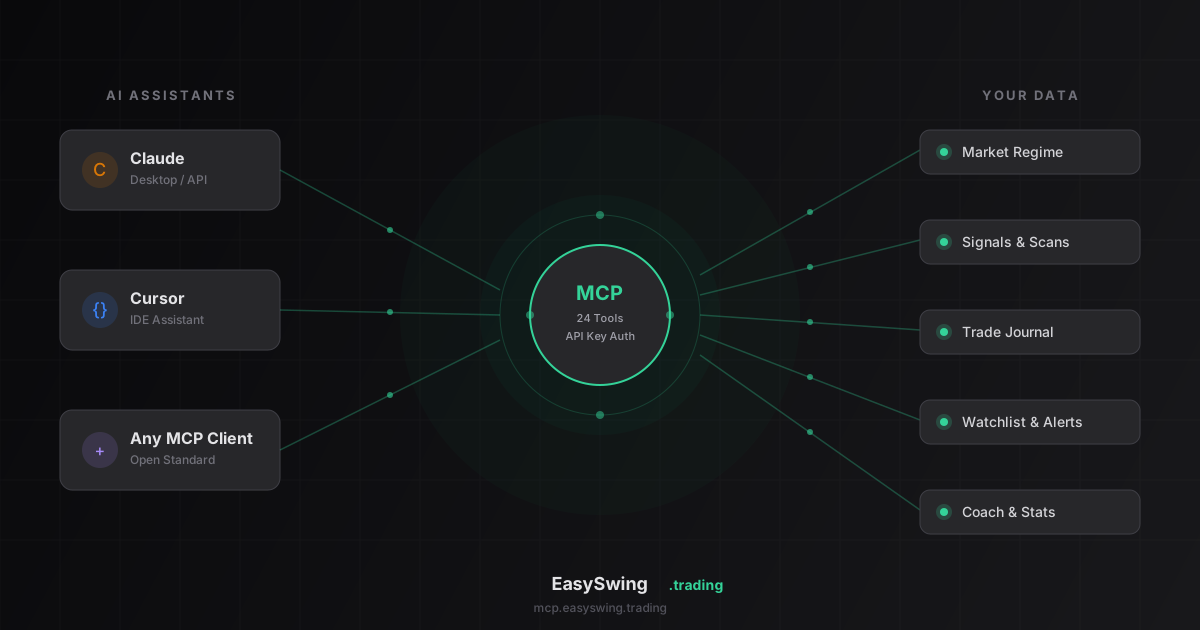
Anthropic open-sourced the Model Context Protocol (MCP) in November 2024 as a standard way for AI assistants to connect directly to the tools and data people already use, instead of requiring a custom integration for every provider. EasySwing built an MCP server on that standard: connect once, and Claude Desktop, Cursor, or any MCP-compatible assistant can read and write your EasySwing data through plain conversation.
Instead of switching tabs to check the market regime, you just ask. Instead of opening the screener to scan for setups, you type "show me today's top breakout setups." Instead of manually logging a trade, you say "add an entry leg — 200 shares of NVDA at $128.50." One API key, generated from Settings, connects your assistant to 25 tools across 7 categories of the EasySwing platform.
What You Can Actually Do With It
Every prompt below works today, against the same data you'd see in the EasySwing dashboard — not a simplified subset. Your assistant reads and writes live: watchlists, alerts, trade journal, coaching insights, all of it.
Check the market before you trade:
- "What's the current market regime?"
- "Show me today's top 10 signals sorted by strategy score"
- "What does the strategy leaderboard look like?"
Scan for setups without leaving your conversation:
- "Scan for breakout setups with grade A or better"
- "What's the best strategy for NVDA right now with a bullish bias?"
- "Give me the full snapshot for AAPL — price, indicators, everything"
Manage your watchlist and journal hands-free:
- "Add CRWD to my watchlist with a target of $420 and a note: watching for pullback to 21 EMA"
- "Create a trade cycle for NVDA LONG — entry zone 125-128, stop at 121, target 140"
- "Add an exit leg: sold 100 shares at $138.50"
Review your performance:
- "How's my trading performance this quarter?"
- "What does my coach report say?"
- "Show me my win rate by strategy"
Why This Beats Tab-Switching
The cost of context-switching is not just annoying — it's measurable. Gloria Mark's research at UC Irvine on workplace interruptions found that after switching away from a task, it takes an average of 23 minutes to fully refocus. Every trip from your AI conversation to a browser tab, back to your notes, and back to the chat is a small version of that same interruption, repeated dozens of times a session.
MCP collapses that loop. The regime check, the scan, the journal entry, and the follow-up question all happen inside one conversation. You are not re-orienting yourself every time you want a data point — you are asking a follow-up question, the way you would to a colleague sitting next to you.
A Real Session, Start to Finish
Here's what a typical pre-market check looks like once MCP is connected — a single conversation, no tab switching:
You: "What's the market regime right now, and is it a good environment for breakout entries?"
Assistant: Calls the market intelligence tool, reads back the current regime (say, Trending Up, ADX 28 and rising, breadth 64%), and notes that breakout strategies like VCP and Cup & Handle are aligned with this regime.
You: "Good. Scan for Grade A or better VCP setups with RS rank above 85."
Assistant: Calls the scan tool with a Grade A floor, filters the results to VCP setups above RS 85, and returns a short list of tickers, each with grade, RS rank, and entry/stop/target levels — the same data the StockFinder grid would show.
You: "Add the top two to my watchlist with a note to check volume at the open."
Assistant: Calls the watchlist tool twice, one per symbol, and confirms both were added with the note attached.
You: "I already own 150 shares of one of those from last week — remind me what my stop and current R is."
Assistant: Calls the trade journal tools, reads back the open cycle's entry and stop, then works out your open R against the latest snapshot price.
Five questions, five tool calls, zero tab switches. Each tool call is scoped to your account and reflects the same enrichment data the dashboard uses — the assistant is not guessing or hallucinating price levels, it's reading the same computed setup card.
The 25 Tools, By Category
EasySwing's MCP server exposes seven tool groups. Each maps to a section of the dashboard, so anything you can click, you can also ask for:
| Category | Tools | Example prompt |
|---|---|---|
| Market intelligence | 5 | "What's the current market regime?" |
| Live signals | 2 | "Show me today's top setups" |
| Alerts | 5 | "Alert me when a stock hits Grade A VCP" |
| Trade journal | 6 | "Log an entry: 200 NVDA at $128.50" |
| Watchlist | 4 | "Add CRWD with a note about the pullback" |
| Coaching | 2 | "What does my coach report say?" |
| Performance | 1 | "What's my win rate by strategy?" |
The trade journal group is the largest because it mirrors the full trade cycle lifecycle — creating a cycle, logging entry and exit legs, and adjusting stops — not just a single "add trade" action.
How to Get Started
It takes about 60 seconds:
1. Generate your API key
Go to Settings in your EasySwing dashboard. You'll see a new "MCP API Key" section. Click Generate API Key. You'll see your key once — copy it immediately.
2. Add EasySwing to your AI tool
In Claude Desktop, Cursor, or your MCP client, add this to your configuration:
{
  "mcpServers": {
    "easyswing": {
      "url": "https://mcp.easyswing.trading/mcp",
      "headers": {
        "Authorization": "Bearer YOUR_API_KEY"
      }
    }
  }
}
Replace YOUR_API_KEY with the key you just copied.
3. Start asking questions
That's it. Your AI assistant now has access to 25 tools across everything EasySwing offers, scoped to your account only — it can see and modify your own data, never anyone else's.
MCP vs. the Dashboard: When to Use Each
MCP does not replace the dashboard — it adds a second way to reach the same data. The dashboard is still the right place for visual work: reading a chart, scanning a results grid, or reviewing the setup card's risk bar. MCP is the right tool when the task is a quick lookup or a data-entry action buried inside a chat you're already having.
| Task | Dashboard | MCP |
|---|---|---|
| Reading a chart or setup card | Best fit — visual, one glance | Not built for this |
| Checking the market regime mid-conversation | Requires a tab switch | One prompt, no switch |
| Scanning with 4+ combined filters | Best fit — filter panel is faster | Works, but describing complex filters in words is slower |
| Logging a trade entry/exit | Form entry, a few clicks | One sentence, no form |
| Reviewing performance while discussing strategy with an assistant | Requires opening a new tab | Native to the conversation |
Common MCP Setup Mistakes
Most MCP connection problems come down to key handling, the endpoint URL, or expecting real-time data from a twice-daily enrichment cycle. Run through this checklist before debugging anything deeper:
- ✅ Copy your API key the moment it's generated — Settings shows it exactly once
- ✅ Use the exact endpoint
https://mcp.easyswing.trading/mcp, including the/mcppath - ✅ Regenerate your key immediately from Settings if you suspect it leaked into a shared file or repo
- ❌ Don't paste your API key into a public repository, shared config file, or chat log
- ❌ Don't expect tick-by-tick data through MCP — it reflects the same twice-daily enrichment cycle as the dashboard, not real-time streaming quotes
- ❌ Don't assume a saved raw-mode screen transfers to MCP automatically — describe the filter criteria in the prompt instead; the assistant re-runs the scan against live data
Your Data, Your Key
Your API key is hashed and stored securely — we never store the plaintext, so a database breach on our end would not expose usable keys. Every request is scoped to the account tied to that key: the assistant can read and write only the watchlist, journal, and alerts that belong to you, never another subscriber's. You can regenerate or revoke your key at any time from Settings, and the old key stops working the moment you do.
Rate limits scale by plan: free-tier accounts get 100 requests per minute, Pro subscribers get 1,000, and the API tier gets 5,000. Rate limiting is keyed to your account, not your API key string, so rotating your key never resets or fragments your usage bucket.
If you're not sure what's available, just ask your assistant — it knows the full tool list and can explain what each one does. Because the same enrichment pipeline powers both the dashboard and the MCP tools, an answer from your assistant will always match what you'd see if you opened the screener directly.
EasySwing syncs the same regime, signal, and journal data your dashboard uses to every MCP-connected AI assistant automatically. Want to learn what your assistant can scan for? Read about VCP setups, Stage 2 analysis, and relative strength ranking. AI assistants provide conversational access to your EasySwing data — all trading decisions remain yours. Scan results are for informational purposes only. See our Risk Disclaimer.
Frequently Asked Questions
What is MCP and how does EasySwing use it?
MCP (Model Context Protocol) is an open standard that lets AI assistants connect directly to external tools. EasySwing's MCP integration gives compatible AI clients — such as Claude Desktop and Cursor — read and write access to your EasySwing account data: market regime, live signals, trade journal, alerts, and watchlist. One API key generated from account Settings is all you need to activate it.
Which AI assistants work with the EasySwing MCP integration?
Any MCP-compatible client works, including Claude Desktop (Anthropic), Cursor, and other clients that support the MCP standard. The most common setup is Claude Desktop with EasySwing configured as an MCP server in the client's configuration file. The server connects to your EasySwing account via the API key you generate in Settings.
What can I ask my AI assistant through EasySwing MCP?
You can check the current market regime, view today's top signals by strategy score, scan for setups by strategy and grade, get a full technical snapshot for any ticker, log trade entries and exits, manage watchlist items and alerts, and review your performance metrics. All 25 tools correspond to actions available in the EasySwing dashboard — now accessible through natural language conversation.
How many tools does the EasySwing MCP server expose?
Twenty-five tools across seven categories: market intelligence (5), live signals (2), alerts (5), trade journal (6), watchlist (4), coaching (2), and performance (1). The trade journal group is the largest because it covers the full trade cycle — creating a cycle, logging entry and exit legs, and adjusting stops — not a single generic "add trade" action.
Is the EasySwing MCP integration secure?
Yes. Your API key is hashed before storage — the plaintext is never retained. The integration is account-scoped: your AI assistant can only read and write your own data, never another subscriber's. You can regenerate or revoke your key at any time from account Settings. All requests route through EasySwing's standard authenticated API.
How do I set up the EasySwing MCP integration?
Generate an API key from the MCP API Key section in your EasySwing account Settings. Then add EasySwing as an MCP server in your AI client's configuration file, using the endpoint https://mcp.easyswing.trading/mcp with your key as an Authorization Bearer token. Full step-by-step instructions are available in your EasySwing dashboard under Settings.
Disclaimer: This article is for educational purposes only and does not constitute investment advice. EasySwing is a stock screening tool, not a registered investment advisor. All trading involves risk. Read our full disclaimer →